// MLC Terminal v1.92.83
Your whole server fleet. One window.
// Gallery
// Features
Why choose MLC Terminal.
Terminal, files, Docker and monitoring in one window, through the SSH login you already have. Nothing to set up on the server.
Protected shells keep running when the Wi-Fi drops or the laptop sleeps. Reconnect and every tab, pane and directory is back where you left it.
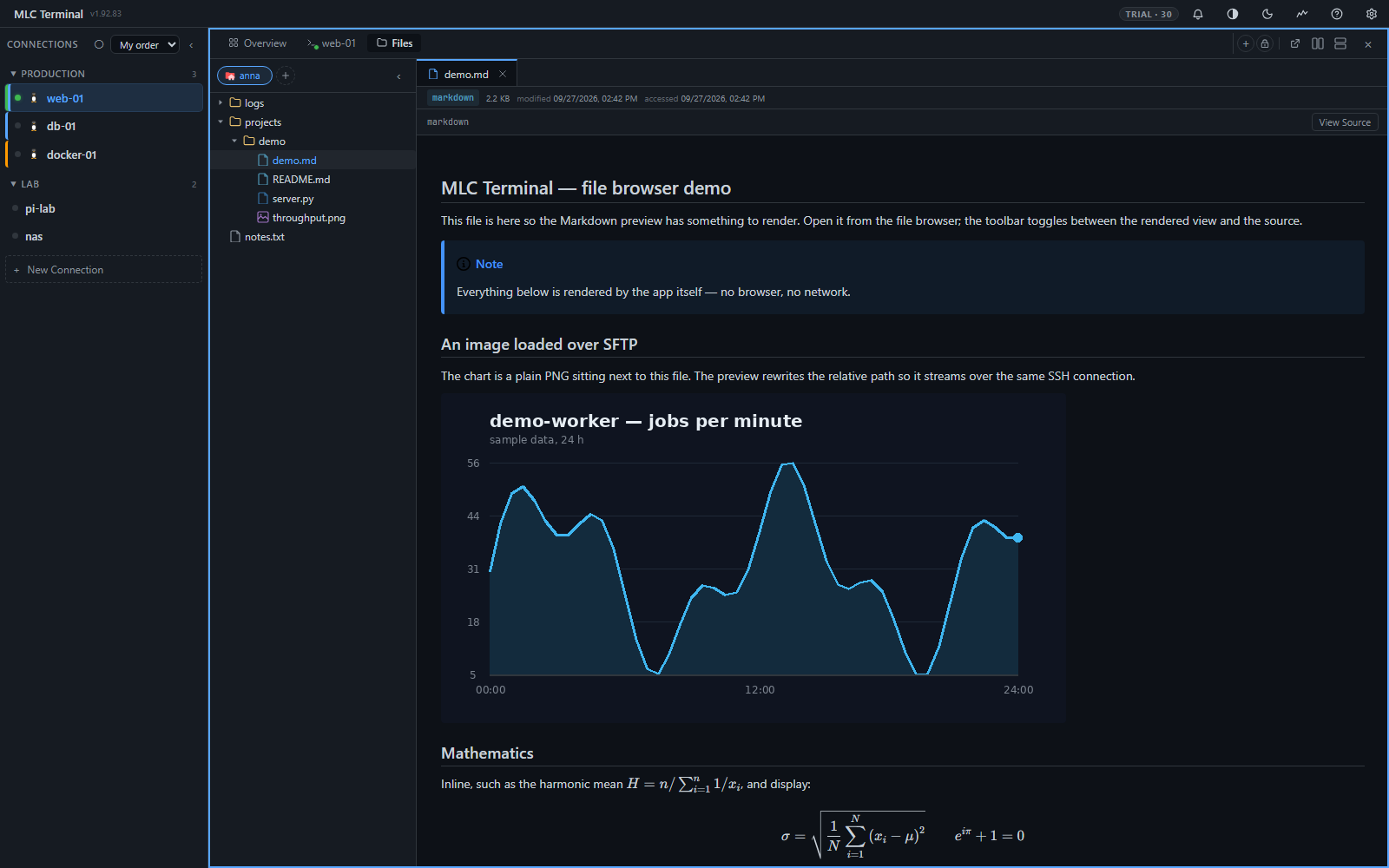
Preview Markdown, images, PDFs, archives and live logs; edit with highlighting; drag files in from the desktop. Ctrl+click a path in the terminal to open it.
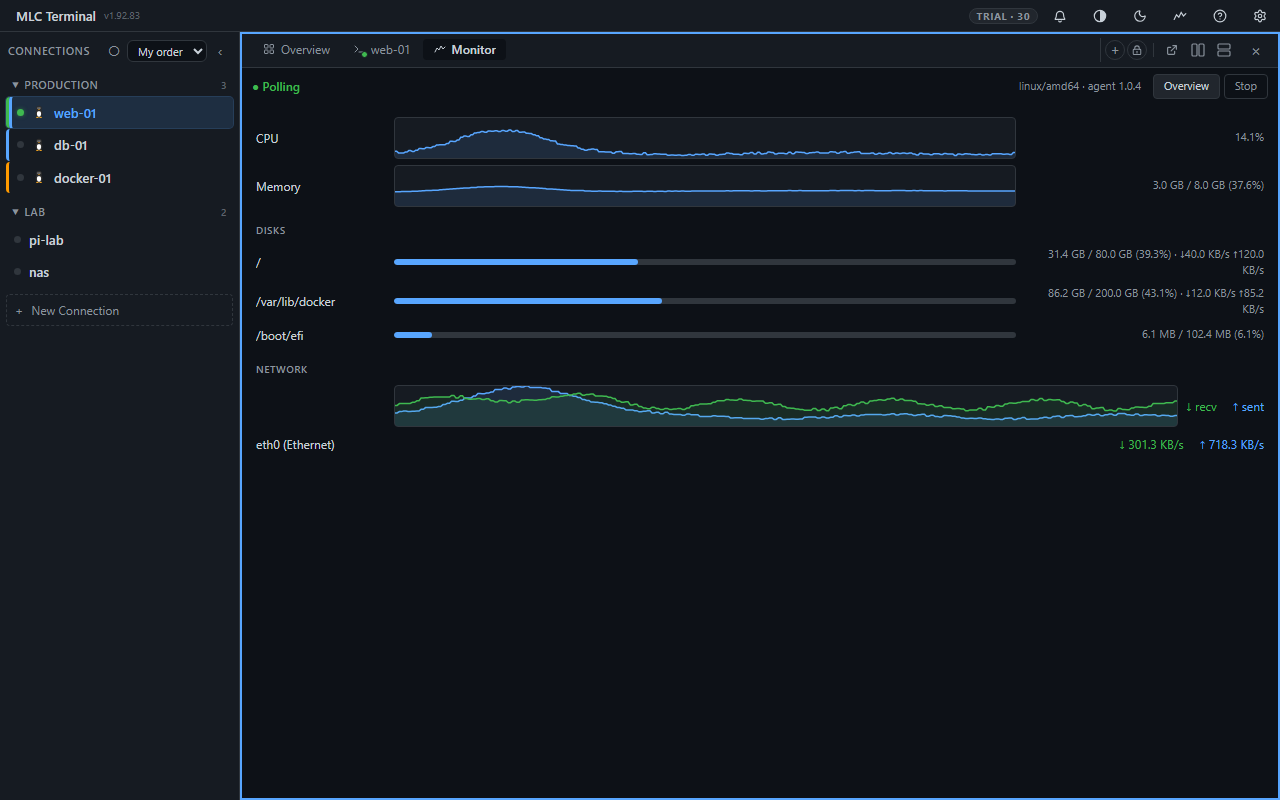
Live CPU, memory, disk and network per host, with recent history — and a dashboard for all of them at once.
List, start, stop and pause containers, follow their logs in colour, open a shell inside one.
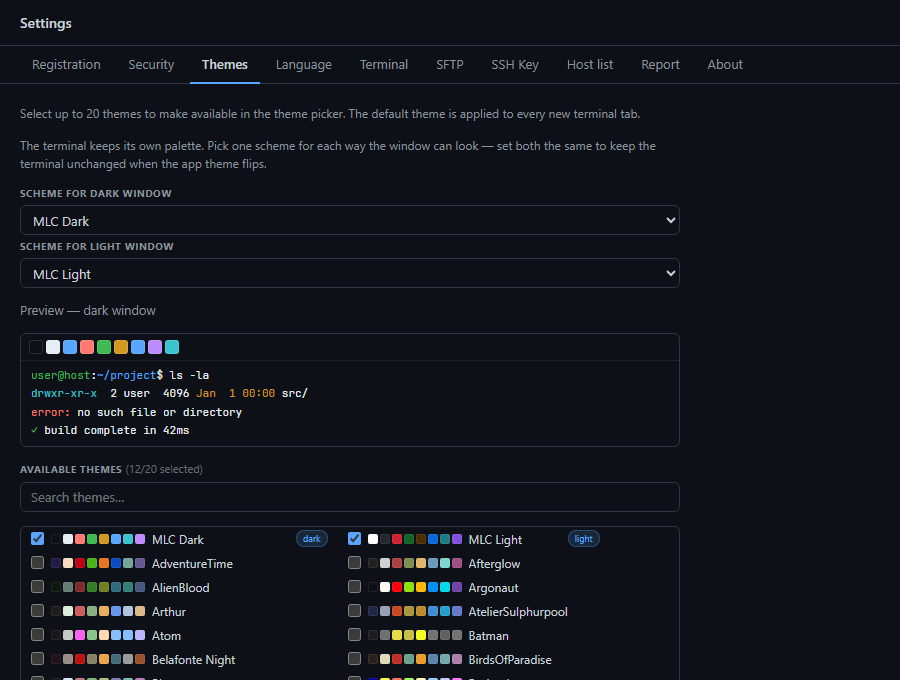
Typed passwords are never written to disk, host keys are checked, nothing is sent anywhere. Hand your host list to the team without credentials.
// SSH, File Browser & Pane Splits
SSH, File Browser & Pane Splits
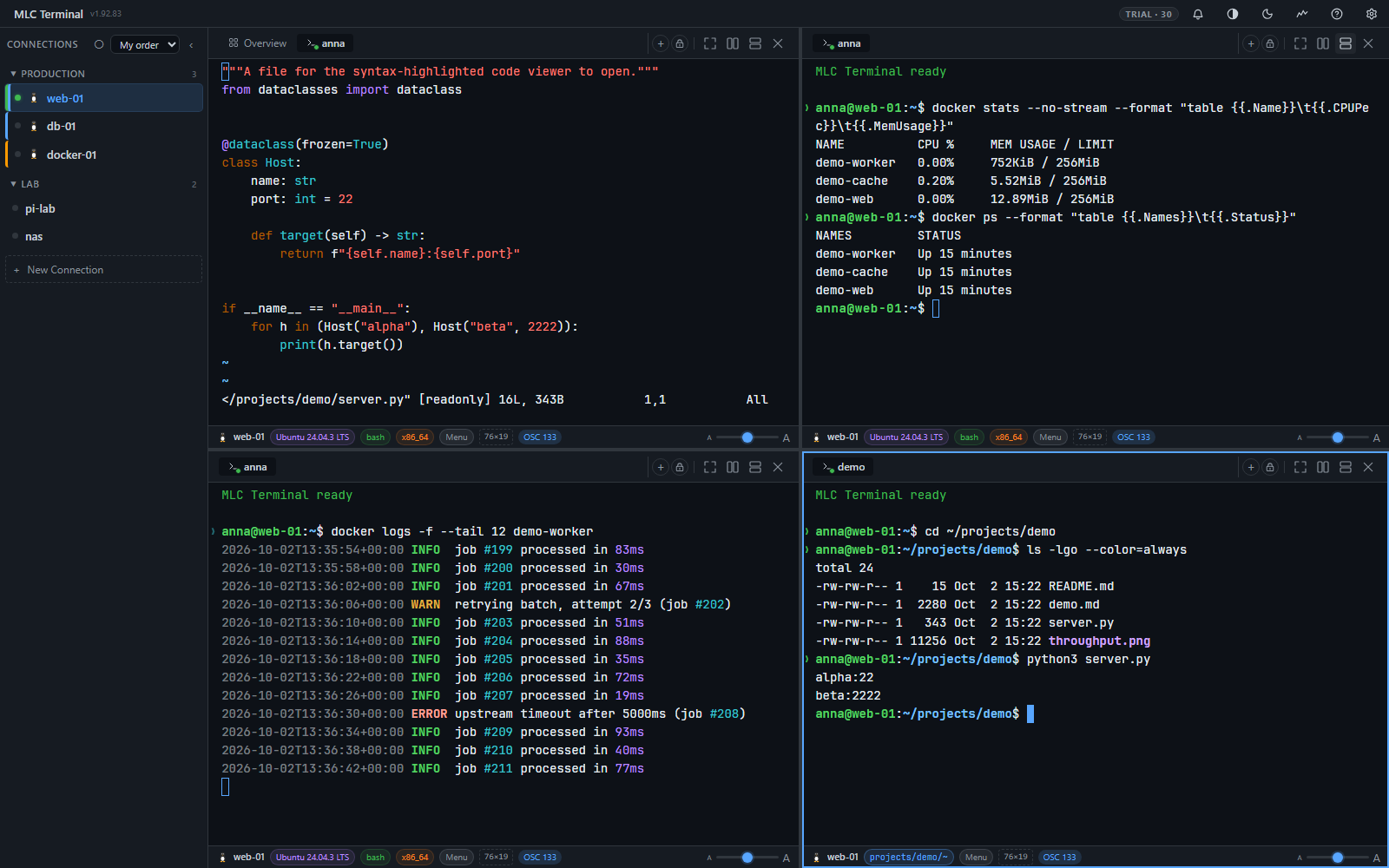
Terminal and files, side by side — or stacked, or in a 2×2 grid. Connect to any SSH server with a single click, then split any tab horizontally or vertically like in a modern IDE. Each pane has its own tab bar, so you can watch a Changelog beside a live top in a container shell with the SFTP tree open on the side. Every tab type — shell, files, monitor, Docker, notes, config — is fully splittable.
- Split any pane right or down, nest arbitrarily deep (VS Code-style)
- Drag tabs between panes — drop on a tab strip to move, drop on a pane edge to split-and-move in one gesture
- As many terminals per host as you need — pooled and multiplexed, and never capped by the app
- Built-in SFTP file browser — navigate, preview, edit, upload, download
- Syntax-highlighted editor for Bash, Go, TypeScript, Python, YAML and more
- Preview images, PDFs, Markdown (with math), HTML and archives inline
- Color-tag hosts by environment — production, staging, homelab
- Auto-connect on startup for your most-used servers
// Multi-Server Dashboard & Live Monitoring
Multi-Server Dashboard & Live Monitoring
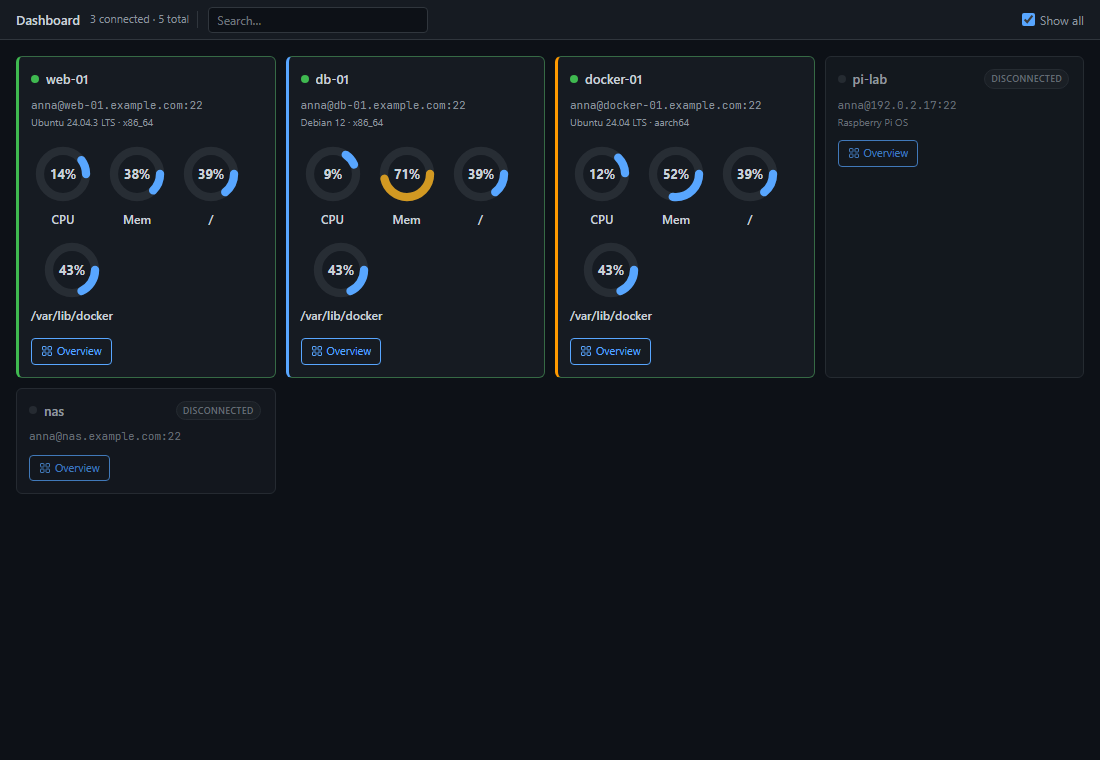
Every host on one screen. The dashboard shows status, OS, architecture and live CPU / memory / disk gauges for each server — watched Docker containers roll up into the card as well. Failed connects light up red so you spot a broken host at a glance; a sparkline history in the Monitor tab lets you trace spikes back in time. No service on the server.
- All hosts on one dashboard — status, OS, architecture and live metrics
- Per-card CPU, memory, disk and network donuts
- Watched Docker containers visible right on the host card
- Failed connects marked red in the sidebar — including tooltip with last error
- Sparkline history in the Monitor tab
- No permanent agent — lightweight helper runs on demand only
// Docker Manager with Inline Shell
Docker Manager with Inline Shell
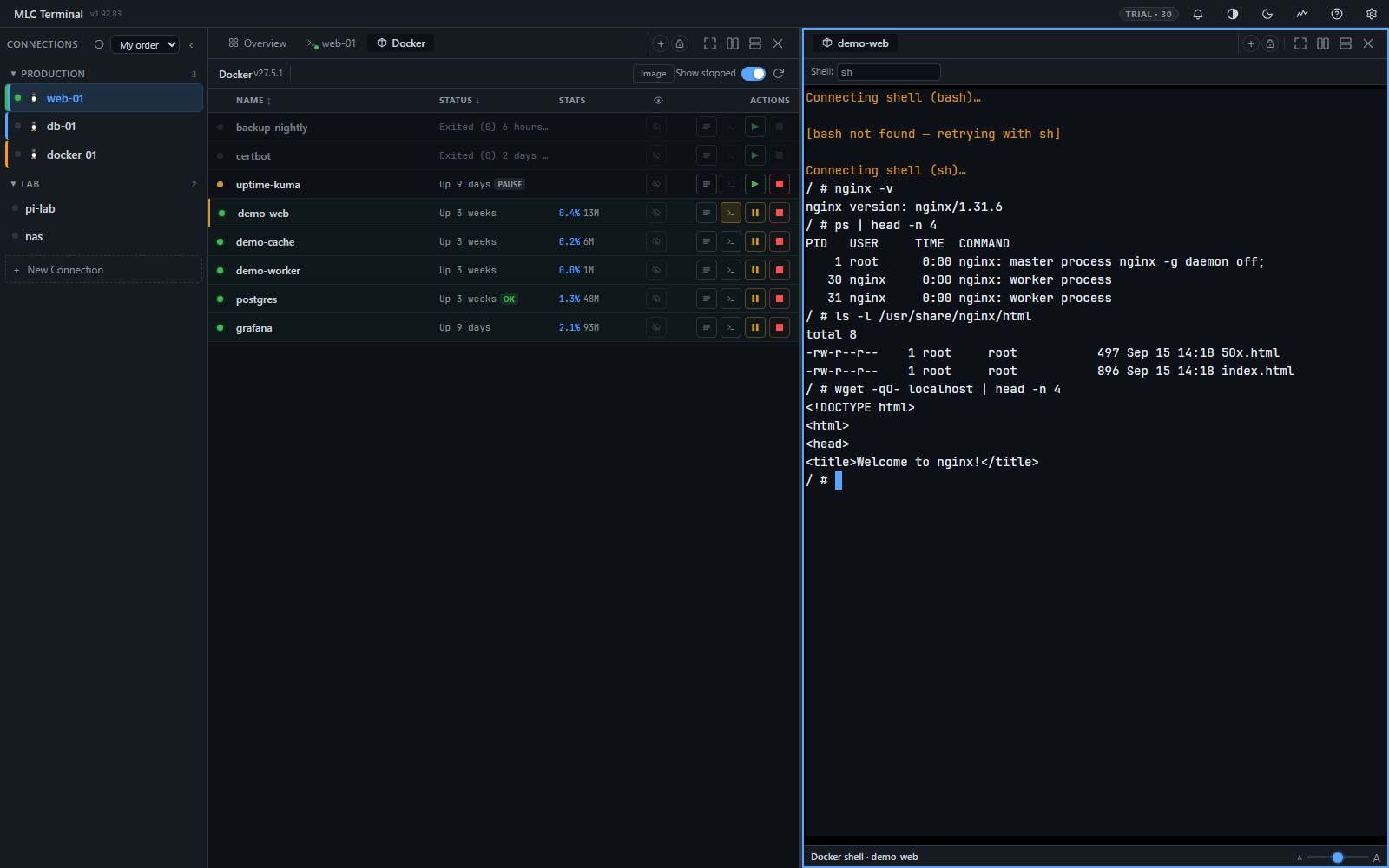
Manage containers without a separate dashboard. The Docker tab lists every container with status, image, uptime and port mappings. Start, stop, pause — and open an interactive shell beside the container list to run `top`, tail a log file, or debug a failing service. All over the existing SSH connection, nothing extra to install.
- List all containers — running, stopped, paused and restarting
- Start, stop, pause and resume containers
- Interactive shell into any container — opens as its own tab, drag it beside the list
- Live log tailing directly in the UI
- Port mappings and image details at a glance
// Keys and Passwords, Handled Properly
Keys and Passwords, Handled Properly
Still logging in with a password? MLC Terminal notices and offers to install its own Ed25519 key on the remote host — one click, authorized_keys handled for you. Using a key that has a passphrase? You are asked for it at connect time and it is held in memory until you close the app, the way ssh-agent does it — there is a field to store one permanently, but it is the fallback, not the path you are pushed down. And where agent authentication cannot work on your machine, the option says so instead of failing later.
- App-generated Ed25519 key, private part never leaves your machine
- One-click install into the remote user's authorized_keys over the existing SSH session
- Dismiss per host — the prompt respects a "never for this host" choice
- Key passphrase asked once per app run, held in memory, never written to disk
- A wrong passphrase is caught against the key itself, so you are told at the prompt and not by a puzzling connection error
- ssh-agent greyed out with the reason where it is unavailable — no agent running, none reachable, or no keys loaded
- Passwords stay encrypted with AES-GCM locally until you delete them
// Pick Your Theme, Pick Your Language
Pick Your Theme, Pick Your Language
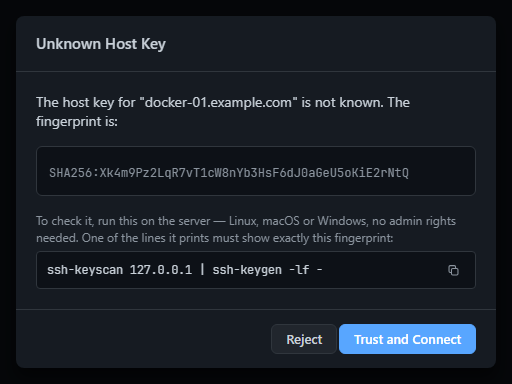
Bundle of 150+ curated terminal themes — pick any 20 as your daily rotation and switch between them from the terminal footer per tab. Every theme ships with a live preview so you see the colours before you commit. On top of that MLC Terminal is fully localised in six languages including Bavarian — pick yours from the Sprache / Language tab.
- 150+ curated colour themes — Dracula, Solarized, Gruvbox, Nord, and more
- Pick up to 20 for the theme picker and switch per terminal tab
- Live preview of background, foreground, ANSI palette and cursor
- Full i18n in 6 languages: English, Deutsch, Español, Português, Français, Boarisch
- Dark and light UI themes, automatic or per-session
Remote editors install their own server component on the host first — and on a small VPS that component often won't even start. MLC Terminal goes the other way: shell, file browser, editor and Docker over plain SSH, as a single native app.
Nothing runs on your server
MLC Terminal speaks the protocol your server already runs. There is no agent to bootstrap, so you are working within a second, and a 512 MB VPS or a Raspberry Pi behaves like any other host. Close the window and nothing keeps running. The only things the app ever places on a server are the ones you switch on: its SSH key, the shell integration, and a small monitoring helper that runs for one reading at a time.
At home with terminal-based AI assistants
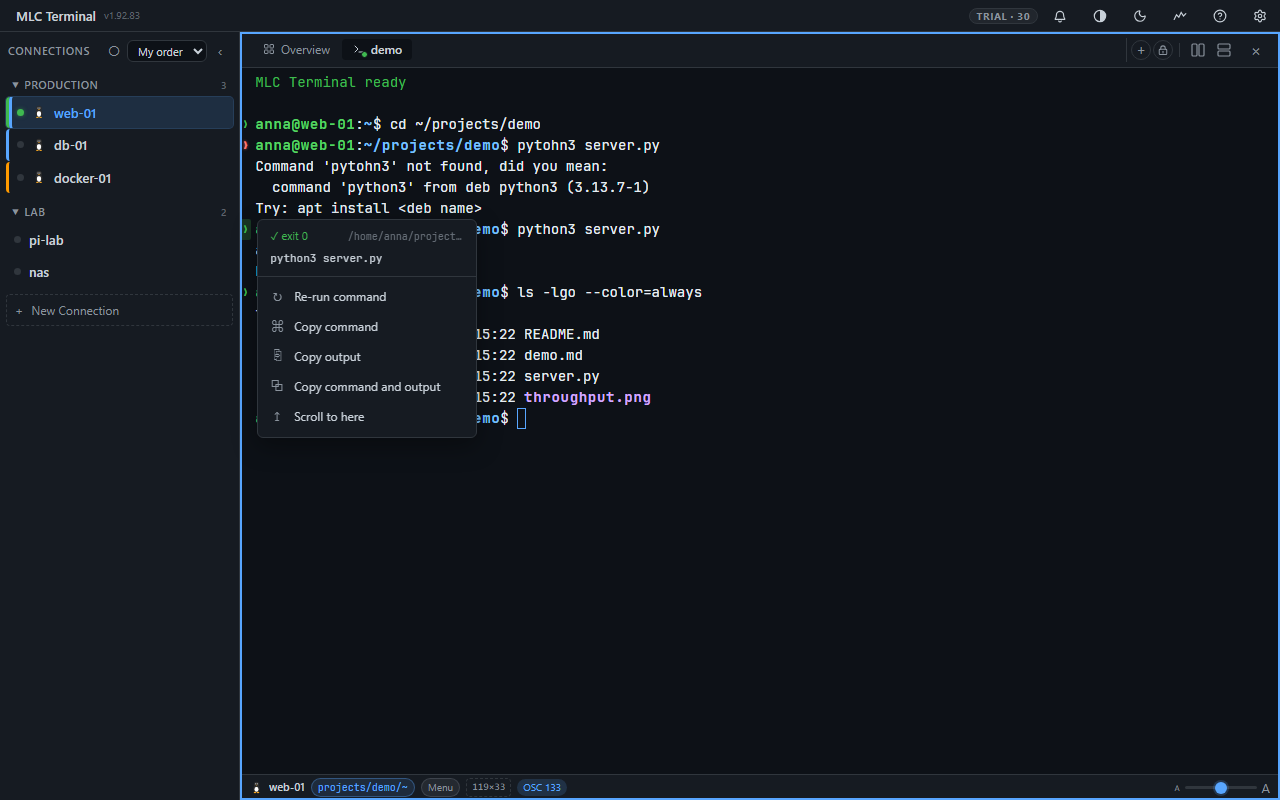
Claude Code and the other CLI assistants work best where the code and the services are — on the server. They also use everything a modern terminal offers, and MLC Terminal speaks all of it: 24-bit colour, inline images, clickable links, desktop notifications when a long run finishes, and a green or red marker beside every command.
Pasting a screenshot works, even though the assistant is on another machine. Press Ctrl+V with an image on your clipboard. MLC Terminal asks whether to copy it over, puts it in ~/.mlcterm/pastes/ on that host and writes the path into your prompt:
/home/you/.mlcterm/pastes/2026-09-23_10-42-11.png: why is the button cut off?
The assistant reads the file where it runs. Nothing is installed for it, and the image never passes through a third party.
Four tools, one window
| Instead of | Use |
|---|---|
| PuTTY / iTerm2 | MLC Terminal shell tabs, split side by side |
| FileZilla / Cyberduck | the built-in file browser and editor |
| Portainer / Lazydocker | the Docker tab |
| Netdata / Glances | the Monitor tab and the dashboard |
All of it rides one SSH connection per host — switching between servers and tabs is instant.
Connecting to a Windows host?
MLC SSH Tray Agent is a small companion for the other side: it sits in the Windows tray and shows who is connected right now — SSH, RDP and WSL sessions with user, source and duration. Useful once several people, or several AI assistants, work across the same boxes. A separate program, not required by MLC Terminal: free, MIT-licensed, open source, no administrator rights needed. github.com/hmsoft0815/mlcssystray
Available everywhere
macOS · Windows · Linux — in English, German, French, Spanish, Portuguese and Bavarian.
The first 30 days run without an account, with everything unlocked. After that MLC Terminal continues on the free tier — up to three saved hosts, without the Docker tab and monitoring — and everything you set up stays. Register before the end of 2026 and the full feature set is free for a year.
What changed in each release is on the what's new page.